The Amazon Fire TV Stick is the most popular way to watch IPTV in Ireland. It's cheap, it plugs straight into any TV with an HDMI port, and once it's set up your IPTV subscription runs like any other app. This guide takes you from a brand-new Fire Stick to watching live TV in about ten minutes, and explains what to look for in a good IPTV provider before you start.
What You Need Before You Start
- A Fire TV Stick connected to your TV and Wi-Fi. Any model works, but the Fire TV Stick 4K or 4K Max is best for 4K sport.
- Your IPTV Ireland login: username, password and server URL. We send these on WhatsApp within 5 minutes of activation.
- A broadband connection of at least 10 Mbps for HD, or 25 Mbps for Full HD and 4K.
- About 10 minutes and your Fire TV remote.
Choosing an IPTV Provider for Your Fire Stick
The Fire Stick is only as good as the service behind it. A reliable IPTV provider in Ireland should give you stable Irish and UK channels, a working TV guide, fast activation and support that answers when you need it, not just during office hours. Before you pay for any IPTV subscription, ask for a free trial and test it on your own Fire Stick and broadband.
With ÉireStream, every IPTV Ireland plan includes the full channel list, a free 30-minute trial and 24/7 WhatsApp support, so you can check everything works before you commit.
How to Install IPTV on a Fire TV Stick: Step by Step
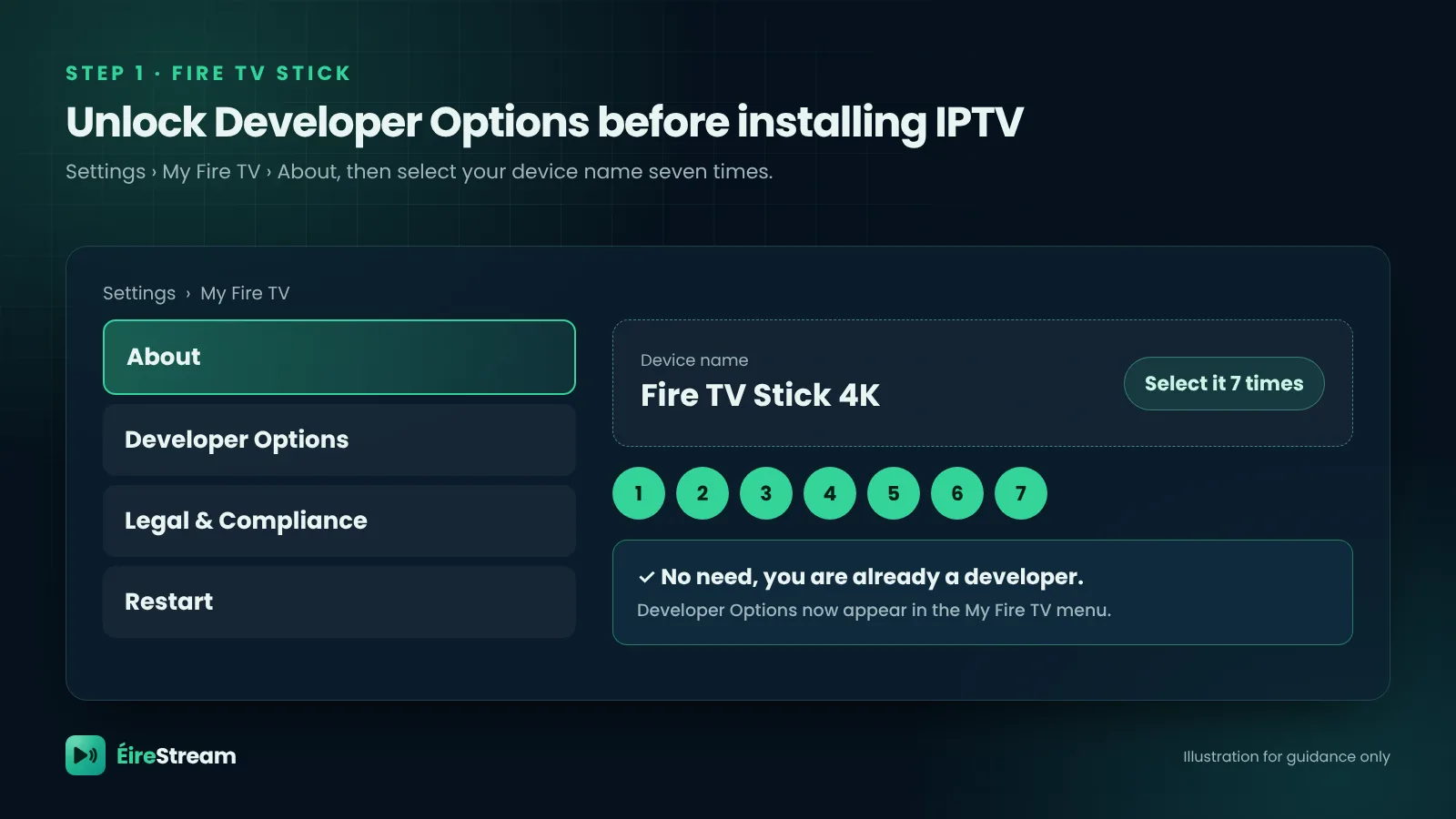
- Turn on Developer OptionsGo to Settings › My Fire TV › About. Select your Fire TV Stick's name seven times until the message "You are now a developer" appears.
- Install the Downloader appFrom the home screen, open Find › Search, type Downloader and install the orange Downloader app.
- Allow Downloader to install appsGo to Settings › My Fire TV › Developer Options › Install unknown apps and switch Downloader to ON.
- Download your IPTV playerOpen Downloader, allow access to files, then type the download code or link our team sends you on WhatsApp into the URL box. Select Go, then Install.
- Delete the installation fileWhen Downloader asks, choose Delete. Fire Sticks have limited storage, and this keeps yours running smoothly.
- Open the app and log inLaunch your IPTV player from Apps and enter your login details as shown in the next section.
Only install apps from links you trust, such as the one your IPTV provider sends you. If anything on screen looks different from this guide, send us a photo on WhatsApp and we'll point you to the right option.
Logging In to Your IPTV Ireland Subscription
Most IPTV players ask how you want to log in. Choose Xtream Codes API (sometimes called "Login with Xtream Codes") and fill in the four boxes:
- Name: anything you like, for example "Home".
- Username and Password: exactly as we sent them. They are case-sensitive.
- Server URL: the full address including
http://, with no spaces at the end.
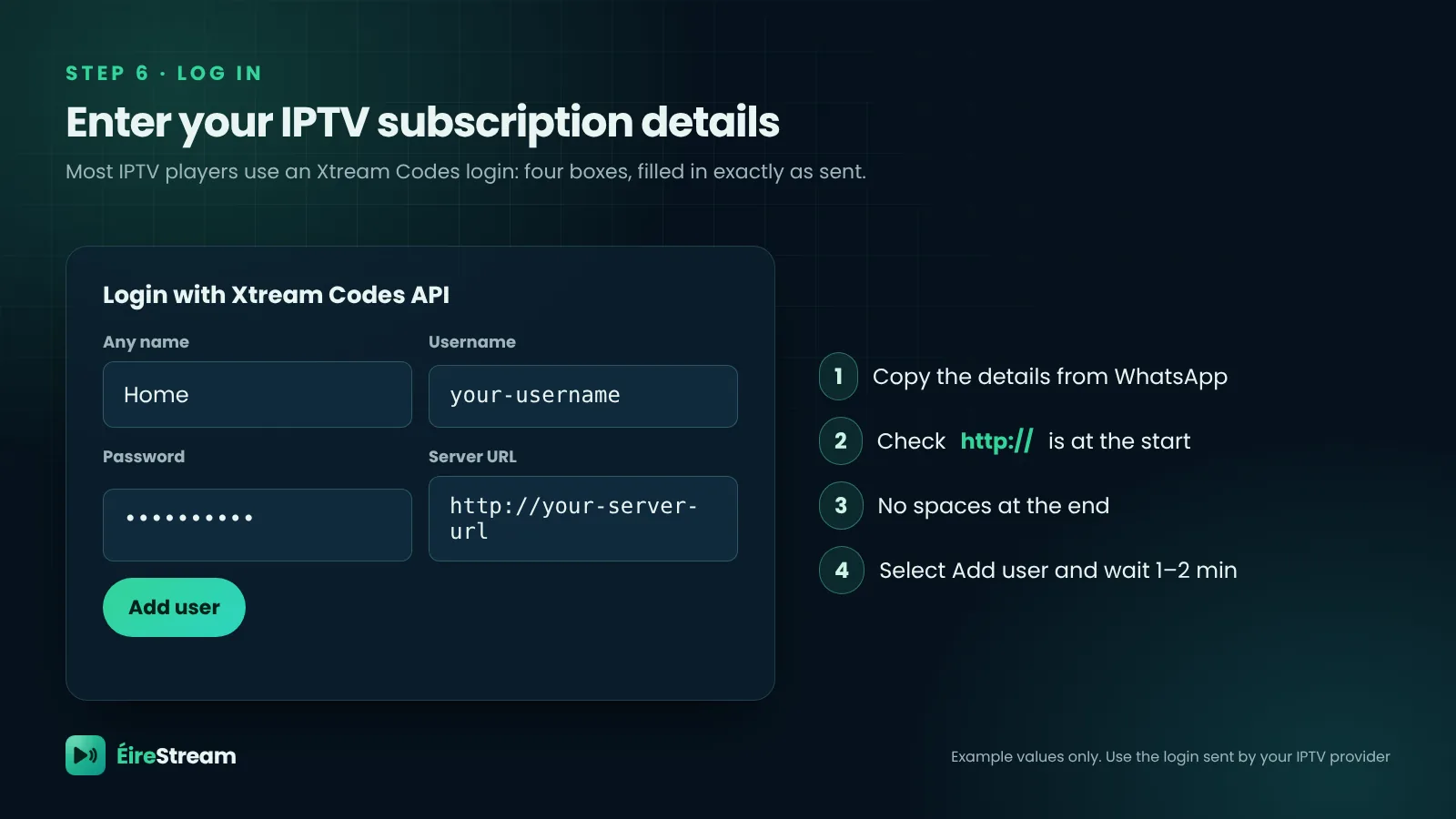
Select Add user. The first time you log in, the app takes a minute or two to load your channels, films and series. After that it opens in seconds.
To keep the app on your home screen, go to Apps, highlight it, press the menu button (☰) on your remote and choose Move to front.
Don't have your login yet?Message us, pick a plan or ask for the free 30-minute trial, and we'll send your details in 5 minutes.
Message Support on WhatsAppTips for Smooth, Buffer-Free Streaming
- Use a wired connection if you can. An Ethernet adapter for Fire TV gives the steadiest picture, especially during big matches.
- Pick 5 GHz Wi-Fi. If your router offers two networks, connect the Fire Stick to the 5 GHz one and keep the router close to the TV.
- Turn off data monitoring. Go to Settings › Preferences › Data Monitoring and switch it off.
- Restart once a week. Settings › My Fire TV › Restart clears the memory and keeps everything fast.
- Clear the app cache. Settings › Applications › Manage Installed Applications, select your player and choose Clear cache.
Fire Stick IPTV Troubleshooting
"Login failed" or "Invalid details"
Re-type your username and password carefully, and check the server URL starts with http:// and has no extra spaces. If it still fails, send us a photo of the screen.
Channels buffering or freezing
Restart your Fire Stick and router, then try again. If one channel buffers but others play fine, let us know which one. If everything buffers, switch to the HD version of the channel and check your speed.
I can't find "Install unknown apps"
Developer Options are hidden until you complete step 1. Go back to About and select your device name seven times.
The app crashes or won't open
Clear the app cache, restart the Fire Stick and make sure you have free storage. If that doesn't help, uninstall and reinstall the app using the same link.