Your IPTV subscription isn't just for the living room. With the right app you can watch IPTV Ireland channels, live sport and films on your iPhone, iPad or Android phone at home, in the garden or on the train. Here's how to set it up on each type of device, how to send the picture to a bigger screen, and what to check with your IPTV provider before watching on several screens.
How to Watch IPTV on iPhone and iPad
- Open the App StoreSearch for an IPTV player. Popular choices include GSE Smart IPTV, iPlayTV and IPTV Smarters. App availability changes from time to time, so ask us for our current recommendation.
- Install and open the appWhen the app asks how to add a playlist, choose Xtream Codes or Login with Xtream Codes API.
- Enter your loginType your username, password and server URL exactly as we sent them on WhatsApp. Tip: copy and paste them from the chat to avoid typos.
- Start watchingYour channels, films and series load in a minute or two. Tap the heart icon on your favourite channels to find them quickly next time.
Apple TV uses the same apps. Search the App Store on your Apple TV and log in with the same details.
How to Watch IPTV on Android Phones and Tablets
- Open the Google Play StoreSearch for an IPTV player such as IPTV Smarters Pro or XCIPTV.
- Install and open the appChoose Login with Xtream Codes API on the welcome screen.
- Enter your loginAdd any name, then your username, password and server URL. Copy and paste them from WhatsApp for accuracy.
- Start watchingTap Live TV, Movies or Series and pick something to watch.
Want us to send the login straight to your phone?Message us on WhatsApp and you'll have your details in 5 minutes, ready to copy and paste.
Message Support on WhatsAppUsing Your IPTV Subscription on Several Devices
Most people install their IPTV subscription on a phone as well as the TV. Before you do, check how many screens your IPTV provider lets you watch at the same time. A good IPTV Ireland service is clear about connections and can add more if your household needs them. With ÉireStream, just message support and we'll tell you exactly what your plan includes.
How to Cast IPTV from Your Phone to Your TV
iPhone and iPad: AirPlay
If you have an Apple TV, or a Samsung or LG TV that supports AirPlay, open Control Centre, tap Screen Mirroring and choose your TV. Some IPTV apps also show an AirPlay icon in the player itself.
Android: Chromecast and Google TV
If your IPTV app shows a cast icon, tap it and choose your Chromecast or Google TV. If it doesn't, open the Google Home app, select your device and choose Cast my screen.
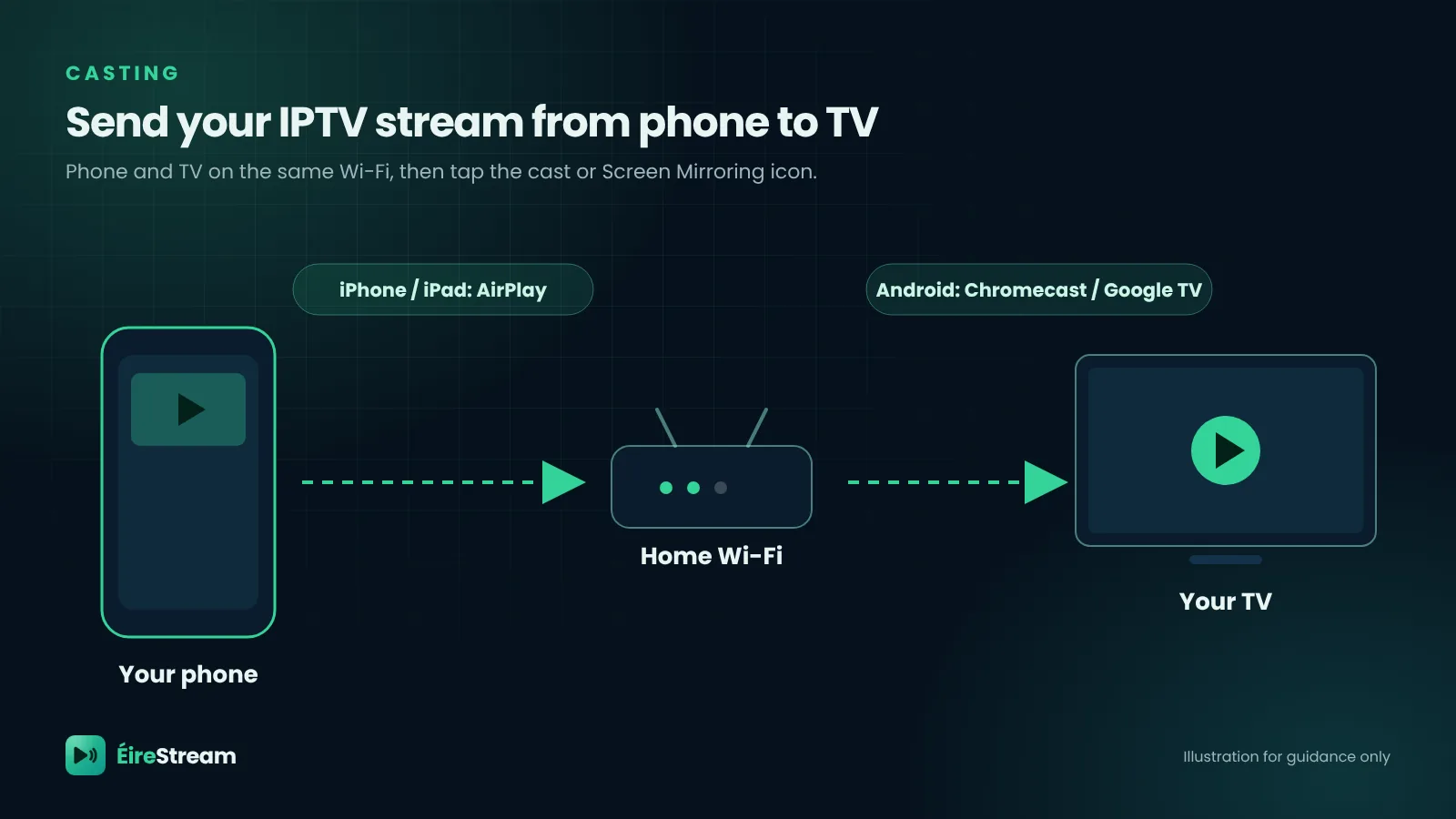
Casting is ideal for a quick match or film. For everyday viewing, an app installed directly on the TV or on a Fire TV Stick gives a smoother picture.
How Much Mobile Data Does IPTV Use?
If you watch on mobile data instead of Wi-Fi, keep an eye on your allowance. These are approximate figures per hour; the real amount depends on the channel and app.
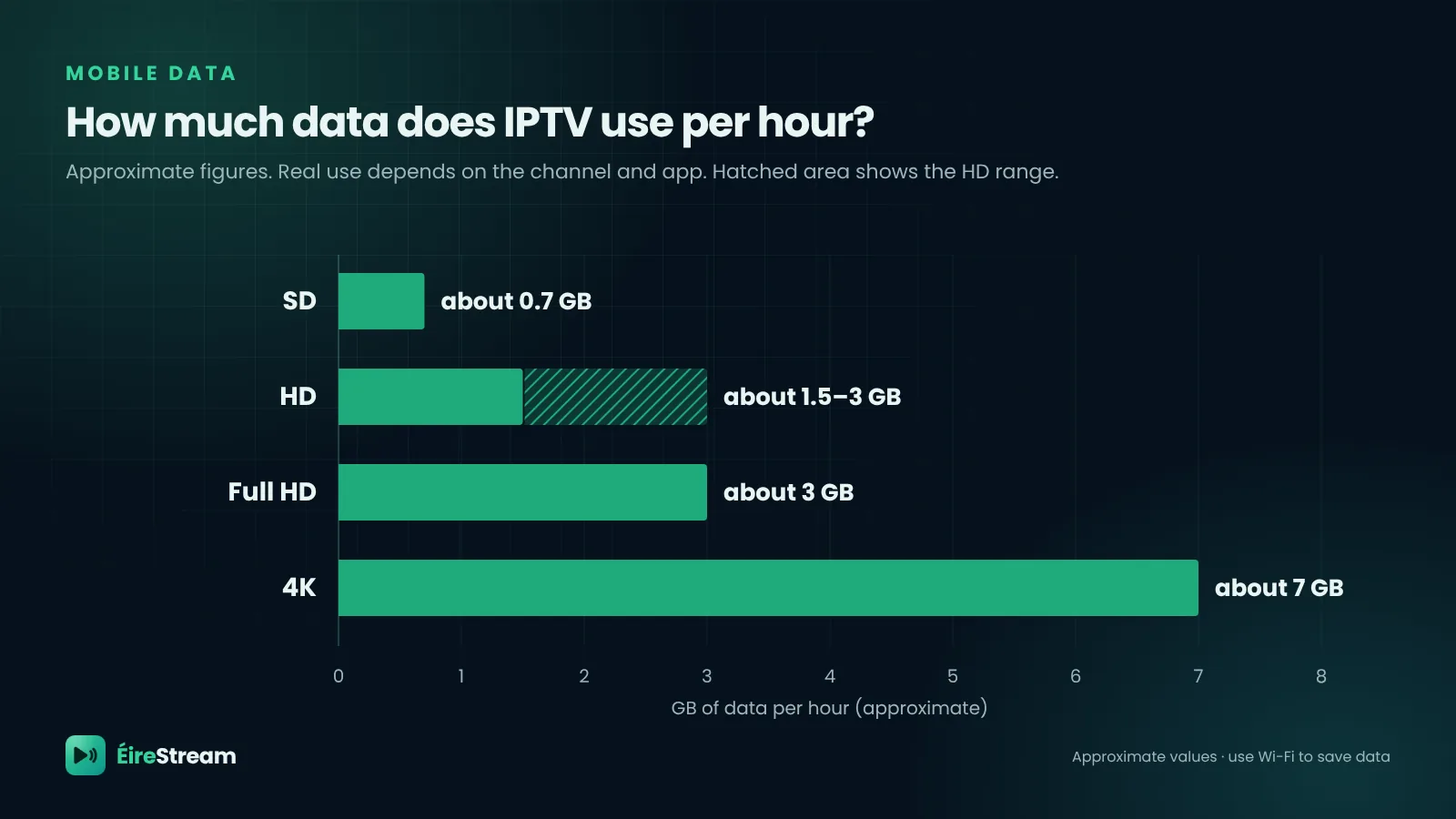
| Quality | Data per hour | Good for |
|---|---|---|
| SD | about 0.7 GB | Saving data on the go |
| HD | about 1.5–3 GB | Phones and tablets |
| Full HD | about 3 GB | Tablets and casting |
| 4K | about 7 GB | Big screens on Wi-Fi |
Tips for Watching IPTV on Your Phone
- Use Wi-Fi at home. It saves your data allowance and usually gives a steadier stream.
- Choose HD rather than 4K on a phone. On a small screen you won't notice the difference, and it uses far less data.
- Turn on picture-in-picture. Many apps let you keep the match playing in a small window while you use other apps.
- Check your connections. Before watching on your phone and TV at the same time, check how many screens your plan allows, and message support if you need more.